
Published October 4, 2026
How to Use Siri on iPhone: The Practical Guide
Everyday Siri essentials plus how to join the Siri AI beta.
Whether you're on classic Siri or the new Siri AI beta, here's how to get the most out of it.
Talking to Siri
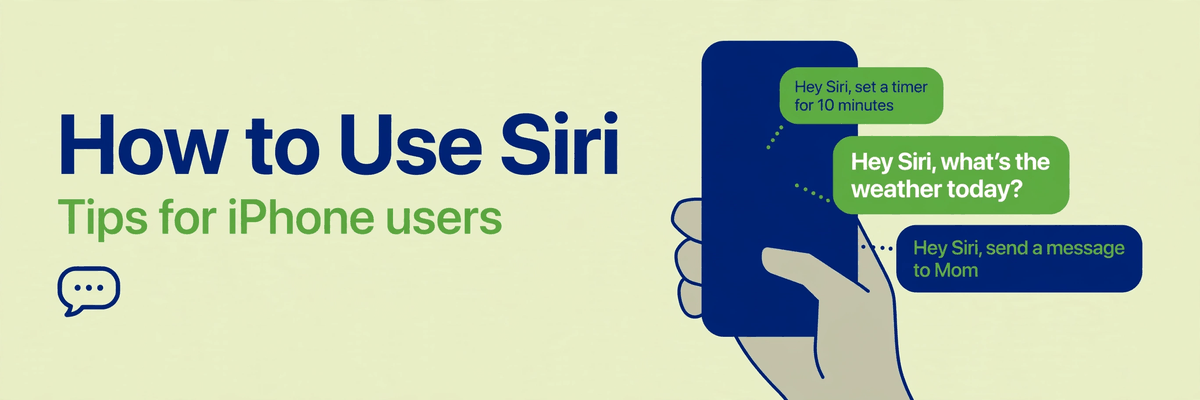
Hold the side button, or just say "Siri" (or "Hey Siri" on older setups). You can type to Siri too — useful in quiet rooms. Speak naturally; you don't need robotic commands.
Everyday things it does well
Timers and alarms, calls and texts, directions and ETAs, smart-home control, quick math and conversions, and "what's this song." These are Siri's bread and butter and they work reliably.
Joining the Siri AI beta
On a compatible iPhone (reportedly iPhone 15 Pro or newer) running iOS 27, go to Siri settings and look for "Try Siri AI (Beta)." You'll complete voice enrollment and privacy settings, and you may land on a waitlist — when admitted, the Siri app installs itself. Device language and Siri language must match, and it's English-only for now.
What Siri AI adds
Personal context (it can reference your messages, emails, and photos), richer multi-step actions across apps, and more natural back-and-forth conversation. Try asking it to find something someone mentioned in your messages, or to draft and refine an email.
Curious about the history? Read the evolution of Siri. Blocked by region? See Siri AI availability.